Barebone or complete: know what you’re buying
A barebone kit is a mini PC sold without memory or storage, and so without an installed operating system. It costs less than the ready-to-use version of the same model and is sometimes the only way to get exactly the memory or SSD you want. This guide shows how big the price gap really is, which mini PCs cannot be bought as kits at all, and what to check so the parts you add actually work.
Buy the complete version if you want a computer that works out of the box. A kit is usually the better buy if you already own compatible memory or an SSD, want more memory than the complete versions offer, or will run Linux. Soldered-memory machines, including every Apple and Ryzen AI Max+ 395 model we list, have no kit. As observed on MiniPC.guru in September 2026, the 32 GB / 1 TB version of a model cost a median of about $420 more than its own kit.
Updated Sep 28, 2026: Rewritten with our catalog data. New: the price gap between each model’s kit and complete versions (September 2026), which models have no kit, memory and SSD rules for kits, OS licensing, US warranty law and when to choose each.
What a barebone kit includes, and what it leaves out
A barebone kit (often just "kit") is the processor, board, cooling and case of a mini PC, without memory, storage or an installed operating system. ASUS’s manual for the NUC 14 Essential shows the split: the NUC Mini PC arrives with memory, an M.2 SSD and Windows 11 Home, while the NUC Kit has none of them.
Two details are easy to miss:
- The power cord. ASUS says the power cord supplied with the NUC 14 Pro and the NUC 15 Pro is region specific and that some SKUs do not include one; the NUC 14 Essential manual adds that the bundled adapter varies by model and region. Check the part number before you order.
- The store’s category is not the contents. 59 of the 93 complete configurations we track at Newegg sit at a Newegg address containing "barebone-systems", although our records list them with memory and an SSD. Read the included RAM and storage on the listing itself.
On MiniPC.guru every kit is a separate configuration labeled Barebone · RAM & SSD not included, never priced together with the ready-to-use version. On October 18, 2026, 76 of our 338 configurations were kits, all new, from ASUS (NUC and ExpertCenter), GMKtec, MINISFORUM and ZOTAC; the Beelink, GEEKOM, Apple, Dell, HP and Lenovo models we list appear only as complete systems.
If the memory is soldered, there is no kit
Many mini PCs put the memory on the board or on the processor package (usually LPDDR5 or LPDDR5X, or Apple’s unified memory). Such a machine cannot be sold without memory, so there is no kit, and the memory cannot be upgraded later: the capacity you choose at checkout is permanent.
In our catalog, 40 of 193 models have memory that the manufacturer documents as onboard, on-package or not upgradeable, and one more, the GEEKOM IT13 Max, has an onboard-memory version; none of them is offered as a kit. They include all 15 Apple models we list, such as the Mac mini M4, and all five Ryzen AI Max+ 395 machines, such as the GMKtec EVO-X2, the Beelink GTR9 Pro and the MINISFORUM MS-S1 MAX.
Getting that capacity wrong is expensive. The EVO-X2 with 128 GB cost roughly $1,300 more than the 64 GB version with the same 1 TB SSD, as observed on MiniPC.guru in September 2026 at GMKtec’s own store, the only US store where we saw both versions priced. For local AI models, our guide to local AI mini PCs explains how to size the memory first.
The "RAM & storage upgrades" line on each product page usually says whether the memory is replaceable; if it does not, check the manufacturer’s manual.
What the complete version really costs extra
We track a model’s kit and complete versions as separate configurations, so the gap can be calculated: for every model sold both ways with a current US store price on both versions on September 27, 2026, we subtracted the kit’s lowest price from the complete version’s, excluding shipping and tax. As observed on MiniPC.guru in September 2026:
- 32 GB of memory and a 1 TB SSD: 21 models. The complete version cost roughly $200 to $600 more than its own kit, with a median of about $420; for 13 of the 21 the gap was between about $350 and $550.
- 16 GB and about 512 GB: 9 models, mostly GMKtec, roughly $100 to $300 more (median about $180).
- Larger configurations: we could pair only two models at 64 GB / 1 TB (both close to $900 more) and two at 96 GB / 2 TB (roughly $1,300 to $1,400 more); each of those complete prices was a single listing at the maker’s own store, so treat them as examples rather than a range.
The complete version was never cheaper than its own kit, and the gap is not a fixed markup. For 8 of the 21 models at 32 GB / 1 TB, it cost more than twice the kit; the GMKtec K12 had the highest ratio, with both prices from GMKtec’s own store. The MINISFORUM MS-01 showed the smallest of those gaps, but only because one third-party store listed the complete version about $300 below the manufacturer’s own store: the gap depends on where you buy.
The premium buys the memory, the SSD, assembly, an installed operating system when the listing includes one, and a single seller for the whole machine. Whether it is worth it depends on today’s part prices, and memory has been expensive: in July 2026 TrendForce said the DRAM market would remain extremely tight and forecast conventional DRAM contract prices to rise another 13–18% quarter on quarter in the third quarter. Price the modules on the day you buy.
Source: TrendForce: 3Q26 memory price outlook (July 3, 2026) ↗
Do the kit math before you compare
Compare a kit plus its parts with a complete system that has the same processor, memory and storage. The kit’s real total is:
- the kit price at the store you would actually buy from;
- the memory the kit takes, of the right type and speed: a matched pair for dual channel, or one module in a single-slot kit (see Match the memory to the exact kit and Fill both memory channels);
- an SSD of the right length and interface;
- a Windows license if you need one;
- shipping and sales tax on each order, since the parts may come from several stores;
- your own time for installation and setup.
A worked example: at GMKtec’s own store, the GMKtec K12 with 32 GB and a 1 TB SSD cost more than $500 above its kit, as observed on MiniPC.guru in September 2026. The matching parts are two 16 GB DDR5-5600 SO-DIMMs and a 1 TB M.2 2280 NVMe SSD. If those, plus any Windows license, cost you less than the gap on the day you buy, the kit is cheaper; if you already own them, it is far cheaper. If the difference is small, the complete machine wins on simplicity and a single warranty.
Following our published method, the compare page shows "Lowest of these" only when every column is the same kind of purchase, so a kit never wins just because its RAM and SSD are missing.
Source: MiniPC.guru: comparison method
Match the memory to the exact kit
Memory rules are specific to each model, so read the kit’s own documentation, not the family page.
- Generation. DDR4 and DDR5 are not interchangeable: DDR4 SO-DIMMs have 260 pins, DDR5 SO-DIMMs have 262, and memory generations are neither forward nor backward compatible. Of our 76 kit models, 53 take DDR5 and 21 take DDR4; for two GMKtec kits the documentation we summarize does not name the generation. Reusing memory from an old laptop? Check its generation first.
- Module type. ASUS lists the NUC 15 Pro with two slots that take either DDR5-5600 SO-DIMMs or DDR5-6400 CSO-DIMMs, up to 48 GB per module. Buy the type and speed the manual names.
- Slots and ceiling. Documented maximums among our kits run from 16 GB to 256 GB; 96 GB is the most common (27 kit models), followed by 64 GB (22). Seven kits have a single memory slot, including the ASUS NUC 14 Essential, whose manual allows one DDR5-4800 module of up to 16 GB.
- Same family, different processor. ASUS lists the ExpertCenter PN64 at up to 32 GB (2 × 16 GB) with a 12th-gen processor, but up to 64 GB (2 × 32 GB) with a 13th-gen one.
- Module details. The NUC 14 Essential manual asks for 1.1 V, non-ECC DDR5-4800 SO-DIMMs, rules out modules built on 2 Gb, 4 Gb or 8 Gb memory chips, and points to ASUS’s Qualified Vendor List; look for your model’s equivalent.
The documented ceiling is what the manufacturer supports: do not assume a larger module will work just because it fits the slot.
Fill both memory channels
Integrated graphics have no memory of their own: AMD explains that a portion of system memory is shared with the integrated graphics controller. Intel even ties the graphics name to the memory layout:
- Intel says Iris Xe graphics requires dual-channel memory; with single-channel memory the same chip works as Intel UHD Graphics.
- Intel says Arc graphics in H-series Core Ultra systems needs at least 16 GB of memory in a dual-channel configuration; other configurations get "Intel Graphics".
32 of our 76 kit configurations have Intel Iris Xe or Intel Arc graphics. For those, buy a matched pair of modules (for example 2 × 8 GB or 2 × 16 GB) rather than one large module: a single 16 GB module in an ASUS NUC 14 Pro kit with a Core Ultra 5 125H would not meet Intel’s condition for Arc graphics. Single-slot kits such as the NUC 14 Essential cannot take a pair at all.
Gaming on integrated graphics? Our guide to gaming mini PCs covers memory and graphics in more depth.
Source: Intel: Iris Xe graphics requires dual-channel memory ↗
Choose an SSD that fits the slot
M.2 describes a shape, not a single standard. The size code gives width and length in millimeters (2242 is 22 × 42 mm, 2280 is 22 × 80 mm), and M.2 drives use either SATA or PCIe NVMe. Check the kit’s documentation for:
- Length. 75 of our 76 kit models take a 2280 drive, and 28 of those also accept a 2242 drive in at least one chassis version (22 through a separate short slot, which on the NUC 13 Pro is listed only for the slim chassis; 6 through a slot that takes either length). The exception is the ZOTAC ZBOX CI337 nano: one M.2 2242 slot plus a 2.5-inch bay, so a 2280 drive is not an option.
- Interface. Some slots accept NVMe or SATA drives (the NUC 14 Essential’s single connector does); others are NVMe only. Ten models in our catalog have documentation stating that SATA SSDs are not supported at all, including the GMKtec K6, K8 Plus and K11 kits.
- Shared positions. On eight MINISFORUM kit models, including the UM890 Pro, the OCuLink port used for external graphics takes an M.2 position, so using it costs you an SSD slot.
- Height and heat. A 2.5-inch bay has a height limit: ASUS says the ExpertCenter PN64’s bay only supports 7 mm drives. A second drive can need extra parts too: Dell says that adding a second SSD to a Dell Pro Micro QCM1250 requires heatsinks on both drives, purchased separately.
Plan the operating system and drivers
A kit arrives with no system on it, so decide what you will install before you order.
- Windows 11. Microsoft’s Media Creation Tool builds a bootable USB drive (you need a blank drive of at least 8 GB), and Microsoft says you need a license to install Windows 11. Its activation guide explains that Windows activates with a 25-character product key or a digital license, and that you can select "I don’t have a product key" during setup.
- Linux. Ubuntu can be downloaded and used free of charge. ASUS lists Windows 11, ChromeOS Flex, Red Hat Enterprise Linux and Ubuntu 24.04 LTS as supported on NUC 14 Pro kits; check your model’s own list.
- Complete does not always mean Windows. ASUS sells NUC 14 Pro Mini PCs with Windows 11 Home or without an operating system, so check that a complete listing actually includes a license.
Download drivers and firmware from the manufacturer’s support page for the exact model. Kits make the most sense for home server builds on free software: there is no license to pay for, and a kit’s memory headroom suits virtual machines.
Source: Microsoft: Download Windows 11 ↗
Warranty, returns and testing
With a kit you may deal with three sellers, and the kit, the memory and the SSD each carry their own warranty and return window. Two points for US buyers:
- Warranty law. The FTC says a warrantor generally cannot require you to use parts or service from a particular company to keep your coverage, unless those are provided free under the warranty or the FTC grants a waiver. Coverage can still exclude defects or damage caused by parts or service the warrantor did not provide, or by you or a non-authorized third party, so install parts carefully and follow the manual.
- Test inside the return window. Check that the firmware reports the full installed memory, run a memory test such as the free edition of MemTest86 from a USB drive, and confirm the SSD appears at its full size. Shared graphics memory is not a fault: AMD explains that a portion of system memory is shared with the integrated graphics (the UMA frame buffer, set in the BIOS), so check the installed total in the firmware rather than the memory left over for programs.
Keep every receipt and part number. A complete system avoids the split: one seller, one warranty and one return if something is wrong on arrival.
Source: FTC: Businessperson’s Guide to Federal Warranty Law ↗
When a kit is the better buy
Choose the kit when:
- you already own compatible memory or an SSD of the right generation and size;
- you want more memory than the complete versions offer: for 40 of the 41 models in our catalog sold both ways, the documented memory ceiling is higher than the largest complete configuration we list;
- you will run Linux or another system that needs no paid license;
- the gap for the same model is clearly larger than what the parts cost you today.
Choose the complete system when:
- the memory is soldered, so no kit exists;
- you want a licensed Windows installation (check that the listing includes one) and one warranty for the whole machine;
- the gap is close to what you would pay for the parts yourself;
- the computer is for someone who will not open the case.
Either way, compare like with like on the compare page, or browse the catalog.
Sources (17)
- ASUS: NUC 14 Essential Kit user manual (PDF) ↗
- ASUS: NUC 14 Pro technical specifications ↗
- ASUS: NUC 15 Pro technical specifications ↗
- ASUS: ExpertCenter PN64 technical specifications ↗
- Intel: Iris Xe graphics requires dual-channel memory ↗
- Intel: Arc graphics in Core Ultra systems (memory requirement) ↗
- AMD: integrated graphics share system memory (UMA frame buffer) ↗
- Wikipedia: SO-DIMM (generations and pin counts) ↗
- Wikipedia: M.2 (module sizes and interfaces) ↗
- Dell: Pro Micro QCM1250 storage (second SSD needs heatsinks) ↗
- Microsoft: Download Windows 11 ↗
- Microsoft Support: Activate Windows ↗
- Ubuntu: about Ubuntu (free of charge) ↗
- FTC: Businessperson’s Guide to Federal Warranty Law ↗
- PassMark: MemTest86 memory test ↗
- TrendForce: 3Q26 memory price outlook (July 3, 2026) ↗
- MiniPC.guru: comparison method
Related Mini PCs
Open a model to see its configurations, specifications and the store prices we track.
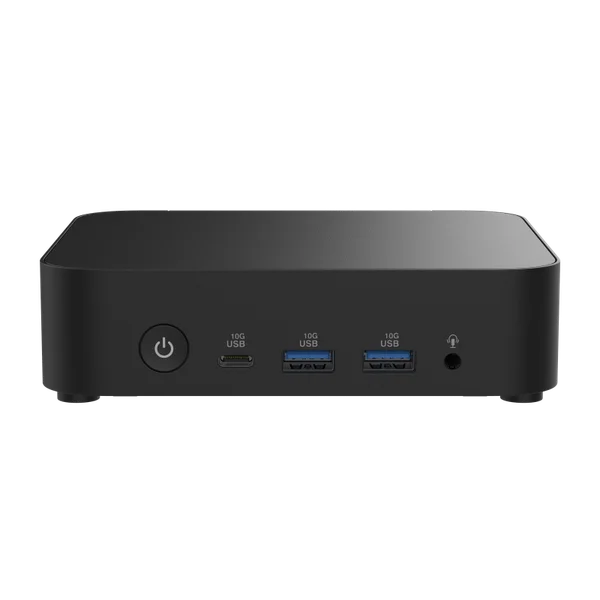 ASUS NUC 14 Essential (N150)Intel N150
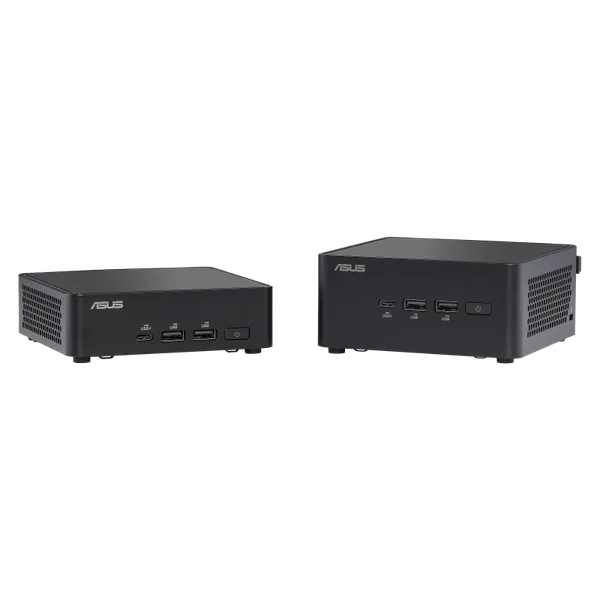 ASUS NUC 14 Pro (125H)Intel Core Ultra 5 125H
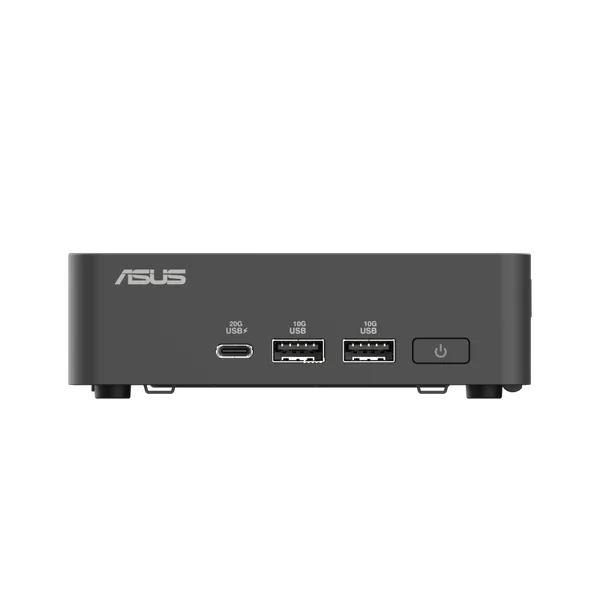 ASUS NUC 15 Pro (255H)Intel Core Ultra 7 255H
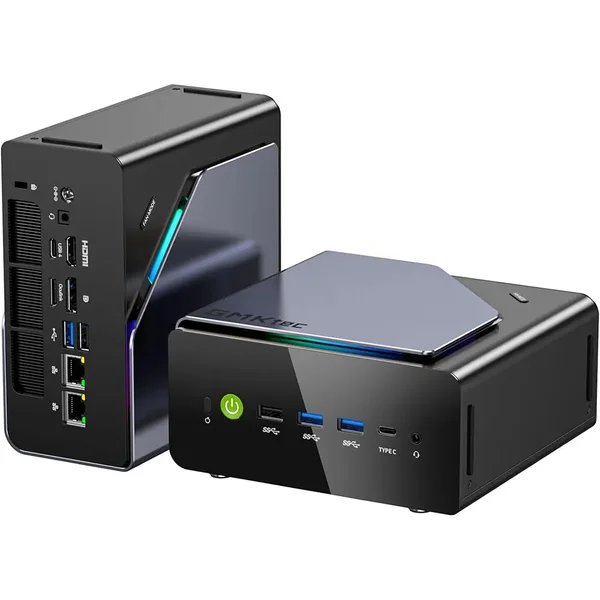 GMKtec K12AMD Ryzen 7 H 255
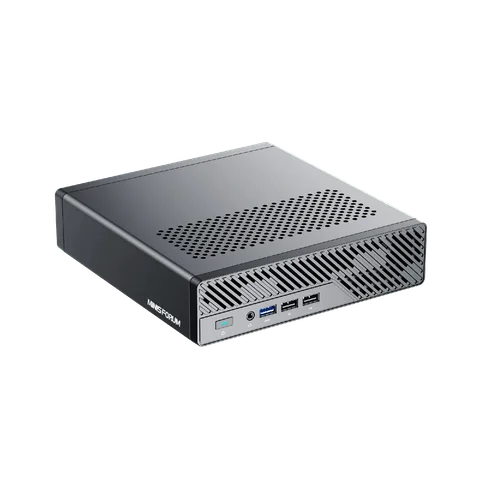 MINISFORUM MS-01 (i9-13900H)Intel Core i9-13900H
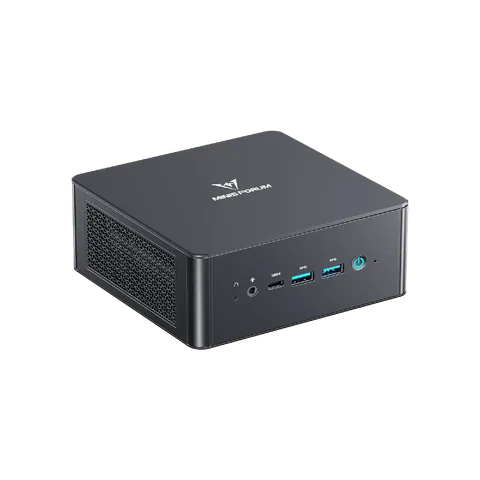 MINISFORUM UM890 ProAMD Ryzen 9 8945HS
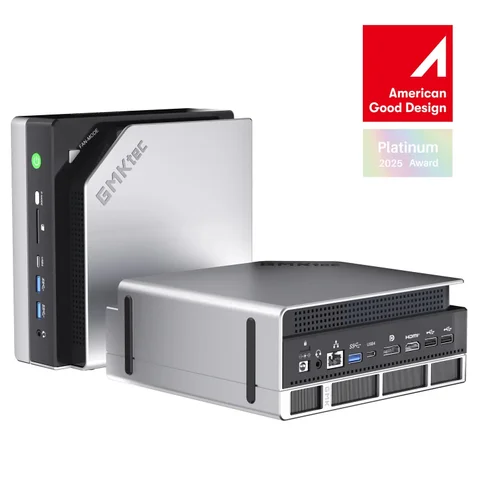 GMKtec EVO-X2AMD Ryzen AI Max+ 395
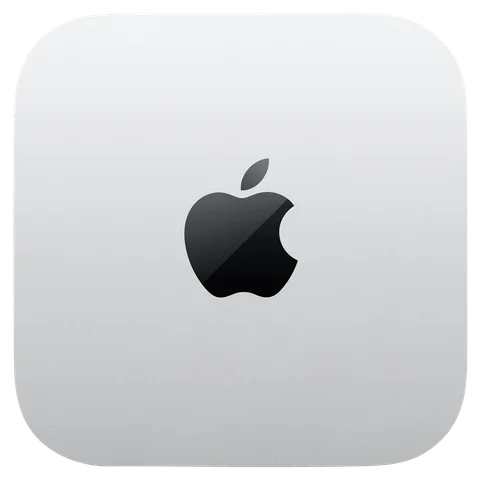 Apple Mac mini M4 (2024)Apple M4 (10-core CPU)